App Store Connect Analytics Help
Acquisition
Understand how users discover your app
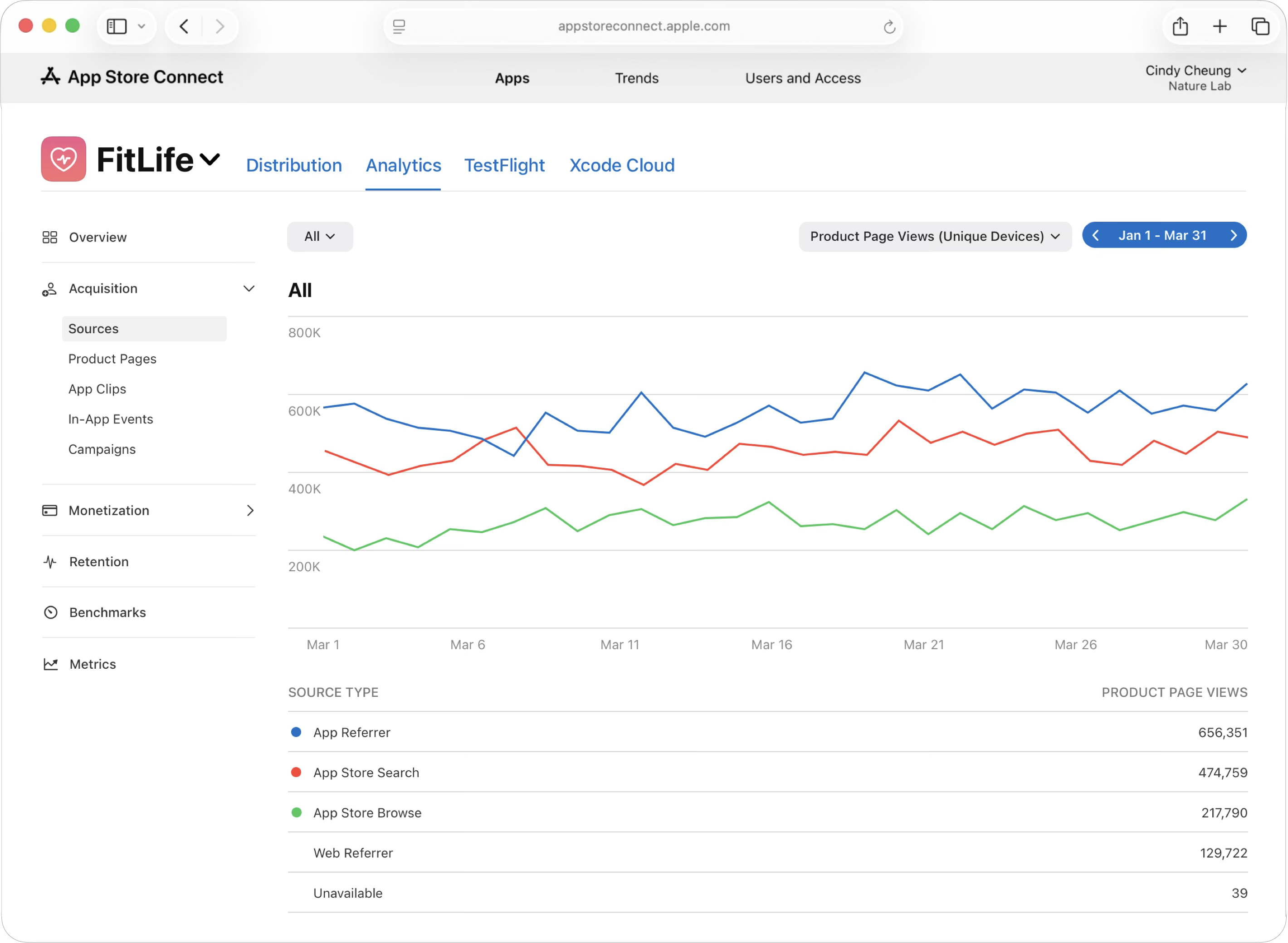
You can use Analytics in App Store Connect to understand which acquisition sources are driving discovery and high-quality downloads for your app. In particular, you can use Analytics to see how many users discover and download your app from App Store search, App Store browse, app referrer, web referrer, and custom marketing campaigns.
All sales, usage, and subscription data for your app are attributed to the download source that was recorded when a user taps to download or redownload the app. This allows you to measure the full customer journey and compare performance across sources. Each time a user manually redownloads your app from the App Store, the source type will reset, and subsequent sales, usage, and subscriptions data will be attributed to the new source.
You can also filter your results further, including by territory and device, to understand performance across different markets and contexts.
To export source data in bulk, download the Analytics reports available through the App Store Connect API.
Understand acquisition from impression to download
Analytics provides a number of metrics to help you analyze your App Store acquisition funnel:
-
Unique Impressions show how many unique devices viewed your app on the App Store for a given day, week, or month.
-
Unique Product Page Views show how many unique devices viewed your product page. If you're running an external ad campaign, users are often driven straight to your app's product page.
-
Total Downloads show the number of times someone downloaded your app, and can be broken down by first-time downloads and redownloads. iCloud restores and auto-downloads onto other linked devices are not counted.
-
Conversion Rate enables you to see how often unique impressions turn into total downloads.
From there, you can segment the funnel to learn what's driving performance — or holding it back. For example, you can see how your conversion rate differs by source type (such as App Store search vs App Store browse vs referrals). If you're using campaign links as part of your referral workflow, you can also attribute individual campaigns and understand which channels drive high-intent users and downloads.
Note: If you're running a pre-order, then each pre-order will count towards your conversion rate instead of the subsequent download. Learn more about pre-order analytics.
View acquisition source data
-
In Apps, select the app you want to view.
-
Click the Analytics tab.
-
In the sidebar under Acquisition, click Sources.
-
The dashboard defaults to "Product Page Views (Unique Devices)." To view other metrics — such as Conversion Rate, Monthly Recurring Revenue, or Usage metrics like Sessions, Installations, or Active Devices — use the dropdown menu at the top of the dashboard and select your desired metric.
App acquisition source metrics and definitions
|
Source type |
Definition |
||||||||||
|---|---|---|---|---|---|---|---|---|---|---|---|
|
App referrer |
Users tapped a link in an app that brought them to your App Store product page. Includes apps using the StoreKit API to load your product page. Includes Apple apps, such as Messages, except Safari. |
||||||||||
|
Institutional Purchase |
Users downloaded your app from Apple Business Manager or Apple School Manager. |
||||||||||
|
App Store browse |
Users viewed your app or tapped to download it while browsing the App Store (for example, in the Today, Games, or Apps sections). |
||||||||||
|
Web referrer |
Users tapped a link from a website that brought them to your App Store product page. If a chain of redirects in Safari leads to your App Store product page, the referring website will be the last URL in the chain. Note: For iOS apps, taps from websites in non-Safari web browsers, such as Chrome, are attributed as that web browser app in app referrers. For macOS apps, taps from non-Safari web browsers are attributed to web referrers. |
||||||||||
|
App Clip |
Users tapped a link in your App Clip that brought them to your App Store product page. If the user then downloaded your app, the resulting download is attributed to your App Clip as the source. View App Clip sources. |
||||||||||
|
App Store search |
Users viewed your app or downloaded it from search on the App Store. Includes views and downloads from ads that appear in App Store search results. |
||||||||||
|
Unavailable |
Sales and usage data display sources as Unavailable if users downloaded your app before Analytics started tracking source attribution on April 15, 2017. As users download your app for the first time, more complete source data will display. If a user downloads your app using an App Store gift card, promotional code, or Mobile Device Management software, the source type will also show as Unavailable. Acquisition source information is unavailable if the user changes their subscription plan within the Manage Subscriptions workflow. |
||||||||||
App Clip acquisition and sources
When a user taps a link from an app, website, or App Clip card that directs them to your App Store product page, the immediate product page view is attributed to the referring app, website, or App Clip. If the user subsequently downloads the app, the resulting first-time download or redownload is attributed to the original source.
|
App Clip invocation source |
Definition |
||||||||||
|---|---|---|---|---|---|---|---|---|---|---|---|
|
Siri |
When Siri suggested your App Clip in response to a user and they tapped the suggestion, your App Clip card was displayed. |
||||||||||
|
NFC tags |
A user held their iPhone near an NFC tag that you placed at a specific location and your App Clip card was displayed. |
||||||||||
|
Maps |
A user tapped on a place card in Apple Maps, followed the link to your App Clip, and your App Clip card was displayed. |
||||||||||
|
Messages |
Your App Clip card was displayed after a user tapped a link they received through the Messages app. |
||||||||||
|
QR code |
A user scanned a QR code with their device and your App Clip card was displayed. |
||||||||||
|
App Clip code |
A user scanned an App Clip code with their device and your App Clip card was displayed. |
||||||||||
|
Location-based |
Your App Clip card was displayed due to the user’s location settings. |
||||||||||
|
App referrer |
Your App Clip card was displayed after a user tapped on a link in another app, such as the Notes app or Facebook. Safari, Maps, and Messages aren't included in app referrers. |
||||||||||
|
Web referrer |
A user tapped on an invocation URL or Smart App Banner in Safari which invoked the App Clip card. A detailed breakdown of web referrers is not available. |
||||||||||